Networks
This section describes the types of network that can be connected to virtual desktops and how they are added.
Depends on the administration settings
Networks (interfaces) are created by the administration, which decides who can use them, by role, category, group or user (see Resources). The desktop selector only shows the allowed networks.
Roles with access
- Connect allowed networks to a desktop: any user (the selector only offers the networks allowed to the user).
- Create or modify networks: administrator role.
Desktops in IsardVDI can have multiple network cards simultaneously, allowing for advanced and flexible configurations. These network cards can be of different types, providing great versatility to adapt to various connectivity and performance needs on the platform.
Roles with access
Networks are created by the user with the administrator role (see Resources). To get a new network, ask the administration.
In the side menu, the section Desktops; this feature is within that screen.
Default
The Default network allows virtual desktops to connect to the Internet with the following characteristics:
Characteristics
- A dynamic address (DHCP)
- DNS server
- Gateway through a NAT router
- They are isolated from other desktops in the system
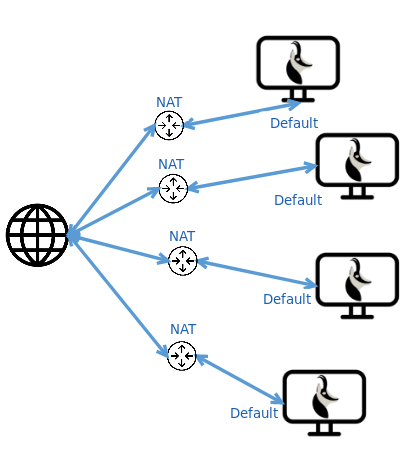
The Default network is added to the desktop from the Networks field of the hardware configuration, like any other network, and only appears in the selector if the user has permission for it. By default, it is allowed for everyone.
Wireguard VPN
A VPN connects devices over an end-to-end encrypted channel.
The wireguard network is one more interface of the desktop: it is added from the Networks field of the hardware configuration, like any other network. It only appears in the selector if the user has permission to use it.
The viewers that use RDP (browser RDP, RDP, and RDP VPN) and access via bastion reach the desktop through this network, which is why they require it.
Wireguard network IP address
On the desktop card, the Networks button shows the connected networks, with the wireguard network always listed first. While the desktop waits for the address (status Waiting IP), a loading indicator is shown and, when it arrives, the IP address of the desktop appears in the wireguard row. The IP address is only shown in the wireguard row; if there is none yet, the row shows «No IP assigned». If the desktop has no network, «No networks attached to this desktop» is shown.
Conditions and messages
- If an RDP viewer or bastion access is added and the desktop does not have the wireguard interface, the system adds it automatically and warns: «Wireguard interface added».
- If the user does not have permission to use the wireguard network, the system warns with «Wireguard interface required» and indicates that the administration must be contacted.
- If the wireguard interface is removed from a desktop, bastion access is disabled («Bastion access disabled») and the RDP viewers are removed («RDP viewers removed»).
Personal
The personal VPN securely connects the user's computer to their virtual desktops. It allows, for example:
Features
- Using the virtual desktop as a server and your own computer as a client, or vice versa.
- Connecting to the desktops via SSH.
- Sharing files with Windows network sharing, NFS, scp, rsync, etc.
- Connecting via RDP through this VPN (with the RDP VPN viewer).
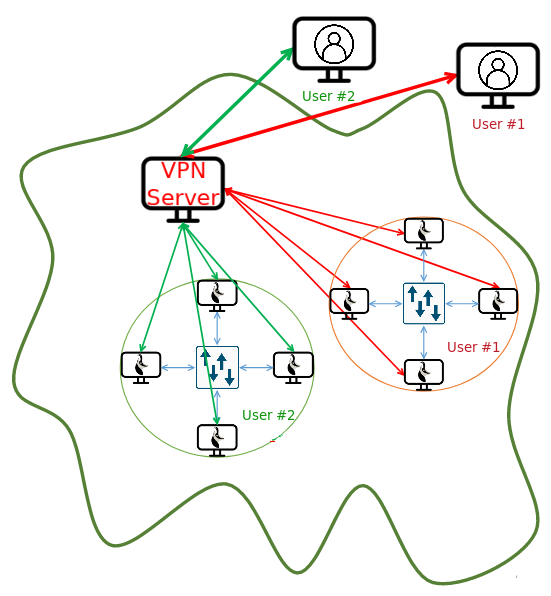
The personal VPN configuration is described in VPN.
Note
- Only one simultaneous VPN connection is allowed: if the VPN is configured on several devices, it can only be active on one at a time.
- Virtual desktops are isolated from the other desktops of the system.
The personal VPN is configured and downloaded from the VPN section of the manual.
Group
License server or external files via VPN to the platform.
An external server can be linked via VPN so that, depending on the permissions, certain users or groups can access it through the VPN network. It requires the intervention of the administration or IsardVDI support.
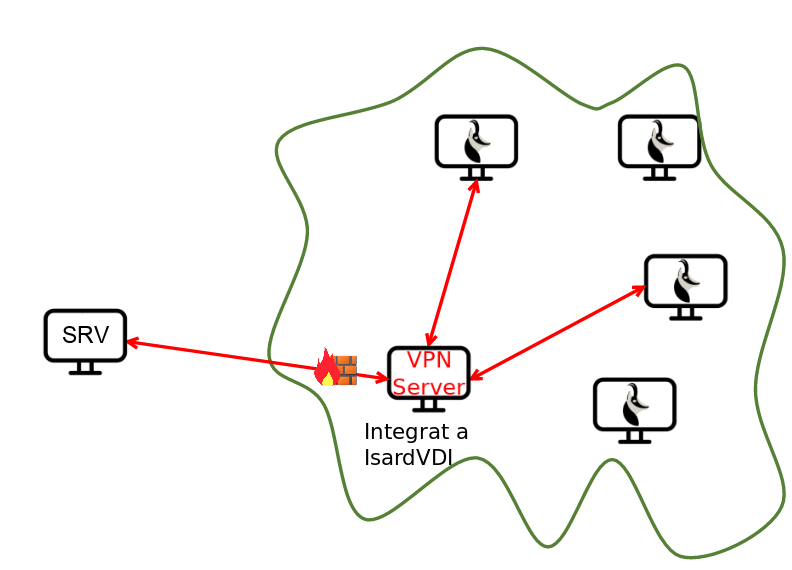
Note
- Firewall rules allow or deny access to the external server per user or per group.
This type of network is set up by the administration or IsardVDI support. Once available, it is connected to the desktop from the Networks field of the hardware configuration, if the user has permission for it.
Personal networks
Personal networks allow the user's desktops to be on the same network (VLAN):
Features
- Each user has a private network environment for their virtual desktops.
- The user assigns the IP addresses, prepares the network configuration and controls access to it.
- It allows replicating the same network configuration between users in network exercises, each in an isolated environment.
- Templates with a fixed IP on this network can be prepared without conflicts when desktops are created from them.
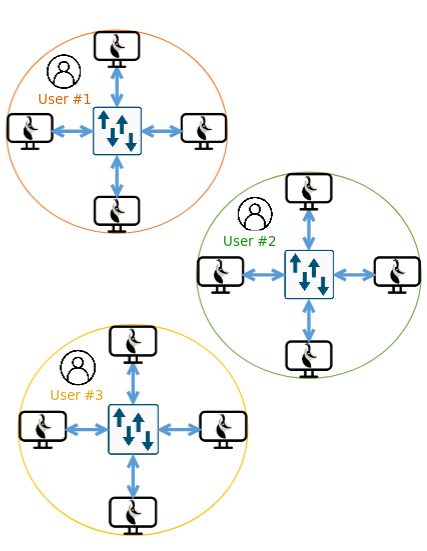
More than one personal network can be used to practice firewalls, proxies or routing:
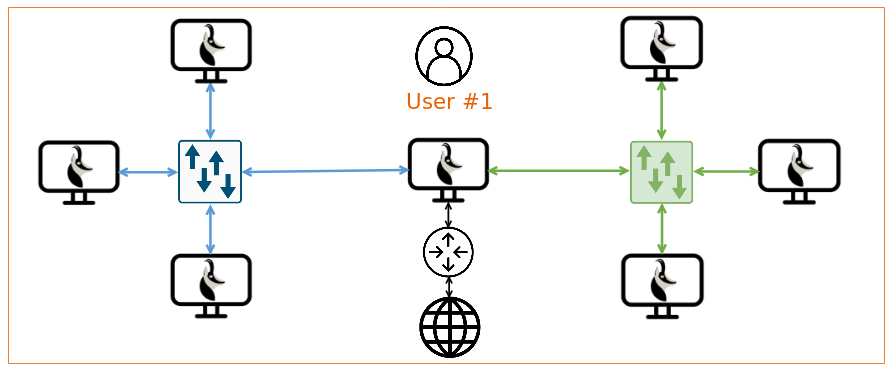
Personal networks are added to the desktop from the Networks field of the hardware configuration, like any other network, and only appear in the selector if the user has permission for them.
Group or private networks
Group or private networks (OpenVSwitch) allow connecting all virtual desktops that have joined to the same network (VLAN), regardless of the virtual desktop owner.
Features
- They can also be connected to the same VLAN of the infrastructure, so that physical computers can connect to the virtual desktops.
- They are intended for desktops of different users to communicate.
- IP addresses cannot be repeated between users, as all the desktops are on the same network.
- They can be combined with the personal VPN and with personal networks for complex network exercises.
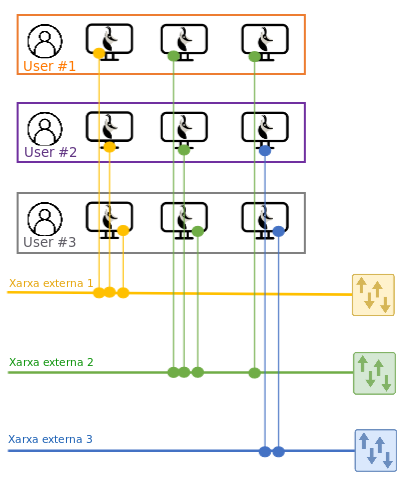
A private network is an isolated communication space that only connects the desktops added to it. It is used to create secure and controlled work environments for specific groups of users.
To add a group or private network to a desktop:
- Edit the desktop.
- In the Networks field of the hardware, open the selector («Add a network»), search for the network by name and choose it.
The chosen networks appear as tags. The order is that of the interfaces inside the desktop (the first tag is the first network card). The order is changed by dragging the tags or with the ← / → keys, and a network is removed with the button on its tag.
The Required tag marks the wireguard network when the desktop has an RDP viewer or bastion access. It can be removed anyway, but then the RDP viewers are removed («RDP viewers removed») and bastion access is disabled («Bastion access disabled»).
Only allowed networks are shown
The selector only offers the networks allowed to the role, category, group or user. Creating or modifying networks is a task of the administrator role (see Resources).
Mixed Networks
They can be combined with the personal VPN and with personal networks for complex network exercises.
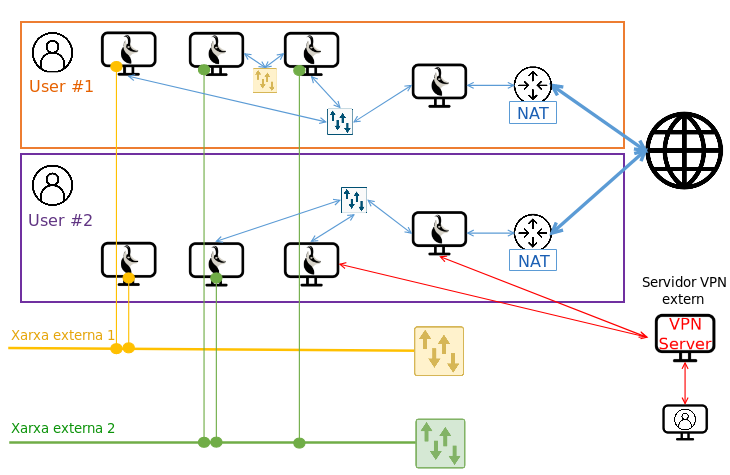
- Use cases with different types of network interfaces:
- Client - Server environment: how to create a Private (OVS) network and use it between the advanced role and the user role.
- Network tests: different networks are introduced and how to configure them on Linux virtual desktops.
- Personal networks: how to use private networks and the user's personal networks (from a user with the administrator role).
A single desktop can combine several networks at the same time (for example wireguard, a personal network and a group or private network): add them all to the Networks field and order them as needed. With the desktop started, the Networks button on the card shows the name and MAC address of each interface, and the IP address in the wireguard row.
Conditions and messages
- If the configuration is not valid, the system displays an error message.
- While no network is selected, the field shows «No networks yet. Pick one with the selector above.»