General FAQs & Troubleshooting
Installation
Docker fails to start after upgrading
The following error is displayed:
ERROR: for isard-hypervisor user specified IP address is supported only when connecting to networks with user configured subnets
This issue occurs due to a change in the internal isard-network configuration. You must remove the existing isard-network:
docker network rm isard-network
Admin interface events appear unresponsive after upgrading
This is usually caused by the client browser cache failing to load new JavaScript sources.
Clear the client browser cache.
Default isard-hypervisor is disabled or shows an error after installation
Open the hypervisor details (click the + button) to view messages from the IsardVDI engine. These messages help determine the cause of the issue. If you just finished the installation wizard and isard-hypervisor is disabled, the problem is likely related to virtualization capabilities. Check the hyp field; it should indicate a virtualization capability (VMX or SVM).
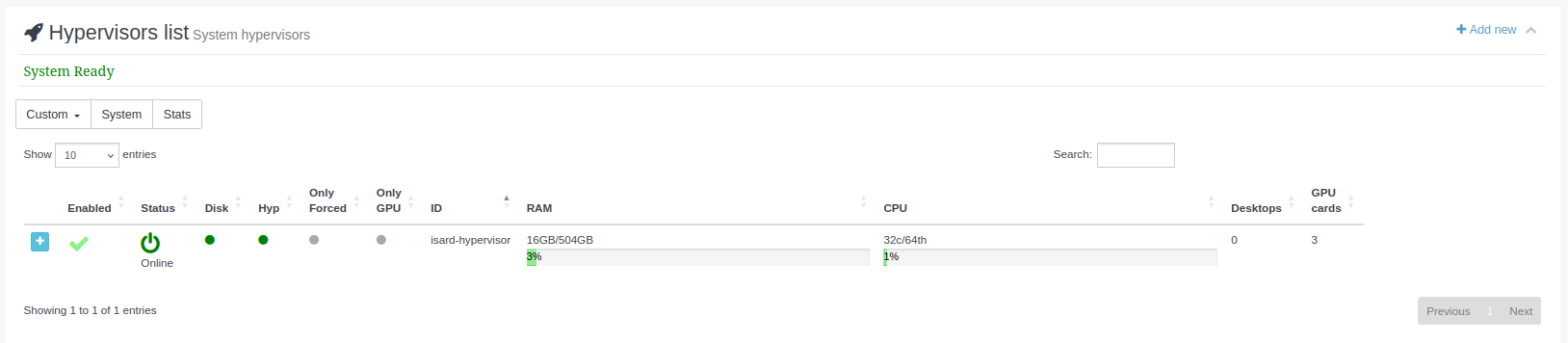
If the field shows False, check your host virtualization settings as follows.
Your hardware must have virtualization enabled. You can verify this in your BIOS or from the CLI:
If the output is empty, your CPU lacks virtualization capabilities or they are disabled in the BIOS. Verify that your CPU supports this feature and that it is enabled in the BIOS.
You can also check for this capability inside the running isard-hypervisor container by issuing the following command:
If the hypervisor still does not connect, ensure that SELinux or AppArmor is disabled:
- SELinux (RH/CentOS/Fedora): Run setenforce 0. Edit /etc/selinux/config and set it to disabled for future reboots.
- AppArmor (Debian/Ubuntu): Run sudo ln -s /etc/apparmor.d/usr.sbin.libvirtd /etc/apparmor.d/disable/usr.sbin.libvirtd. Then, reboot the system.
If the hypervisor details show an SSH key-related error, run docker-compose down, delete /opt/isard/sshkeys using rm -rf /opt/isard/sshkeys, and then run docker-compose up -d again.
Viewers
Tries to connect to localhost or incorrect IP/hostname
Disable isard-hypervisor in the Hypervisors menu and verify that the viewer hostname is correct:
- Disable
isard-hypervisorin the Hypervisor menu. - Edit the Hypervisor (details edit button).
- Check or update the Client viewers address. This must be the hostname or IP address where IsardVDI is running and must be accessible from clients.
- Enable
isard-hypervisoragain and start a new domain to check the viewer connection.
Explanation
You likely used 'localhost' or an IP address different from the one you are currently using to connect with viewers during the wizard setup. This results in isard-hypervisor being configured with 'localhost' or the incorrect server IP address.
You can always modify the viewer address used for clients by editing isard-hypervisor. To edit it, you must first disable isard-hypervisor by clicking the Enable/disable button:
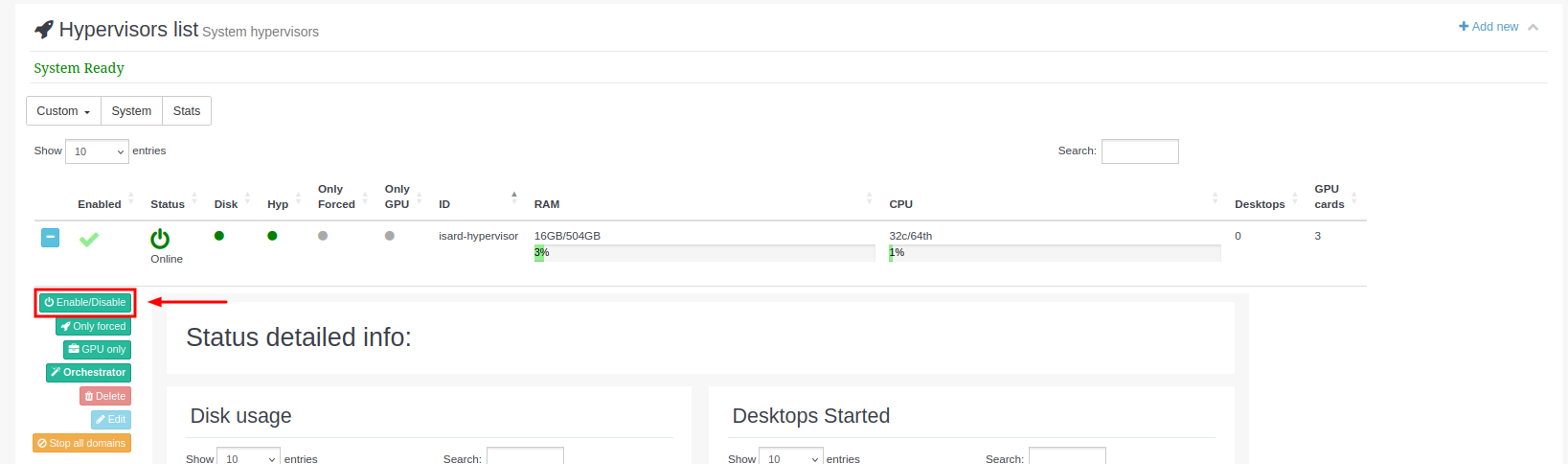
Then, the edit button will be enabled, allowing you to access the isard-hypervisor edit form:
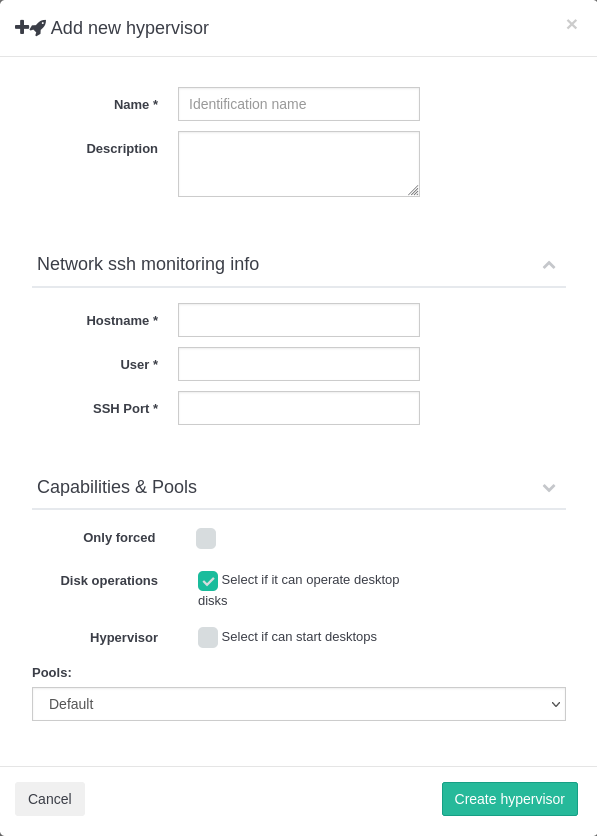
There are three viewer IP fields that can be set:
- Web host: This IP or DNS name is used by HTML5 viewers from your network connecting to your IsardVDI server. It should be set to the real IP address of your web server.
- Video proxy host: This should be the same IP or DNS as the web host if you have an 'all-in-one' installation. If this is a remote hypervisor, it should be the IP or DNS reachable from the outside world for that hypervisor.
- Hypervisor hostname from video proxy: As this is used in complex infrastructures, just set isard-hypervisor here, which is the default name for the hypervisor container.
Enable the hypervisor again.
NOTE: When enabling and disabling hypervisors, it is recommended to restart the isard-engine container as this process is not completely reliable now and could fail. To restart it, do:
This does not affect currently started virtual machines.
Downloads
Which user and password do the downloaded domains have?
All domains downloaded from the Downloads section use the user isard and the password set in the template by default. The isard user has superuser privileges.