SAML authentication
Roles with access
Only administrators have access to this feature.
SAML 2.0 authentication delegates the login to the organization's identity provider (Identity Provider, IdP): Keycloak, Shibboleth, ADFS, Azure Entra ID, SimpleSAMLphp… The user authenticates on the corporate portal and returns to IsardVDI already identified, without IsardVDI ever seeing their password.
In this scheme, IsardVDI acts as the service provider (Service Provider, SP). Similarly to the LDAP configuration, the system can determine the user's category, group and role from the attributes contained in the SAML assertion.
The examples on this page are fictitious
The configuration values shown (idp.example.com, isardvdi-example, the attribute names…) are examples and have not been validated against a real IdP. The screenshots show the IsardVDI form with these values; the login journey through an IdP depends on each organization's specific configuration.
Requirements
- A SAML 2.0 IdP reachable from the
isard-authenticationcontainer. - The IdP metadata URL, or the metadata file stored locally.
- A certificate and private key for the service provider. IsardVDI generates a self-signed one if the files do not exist.
- The IdP administrator must register IsardVDI with the ACS and metadata URLs described below.
Endpoints exposed by IsardVDI
When SAML is enabled, IsardVDI publishes the following endpoints. Give them to the IdP administrator:
| Endpoint | Path | Purpose |
|---|---|---|
| Metadata | https://<domain>/authentication/saml/metadata |
Service provider metadata, to configure the IdP. |
| ACS | https://<domain>/authentication/saml/acs |
Assertion Consumer Service: where the IdP sends the assertion. |
| SLO | https://<domain>/authentication/saml/slo |
Single Logout. |
Categories with their own configuration
If a category uses its own SAML configuration (Config Source: Custom), it has its own endpoints with the category identifier in the path: https://<domain>/authentication/saml/<category_id>/acs, and equivalents for metadata and slo.
Configuration
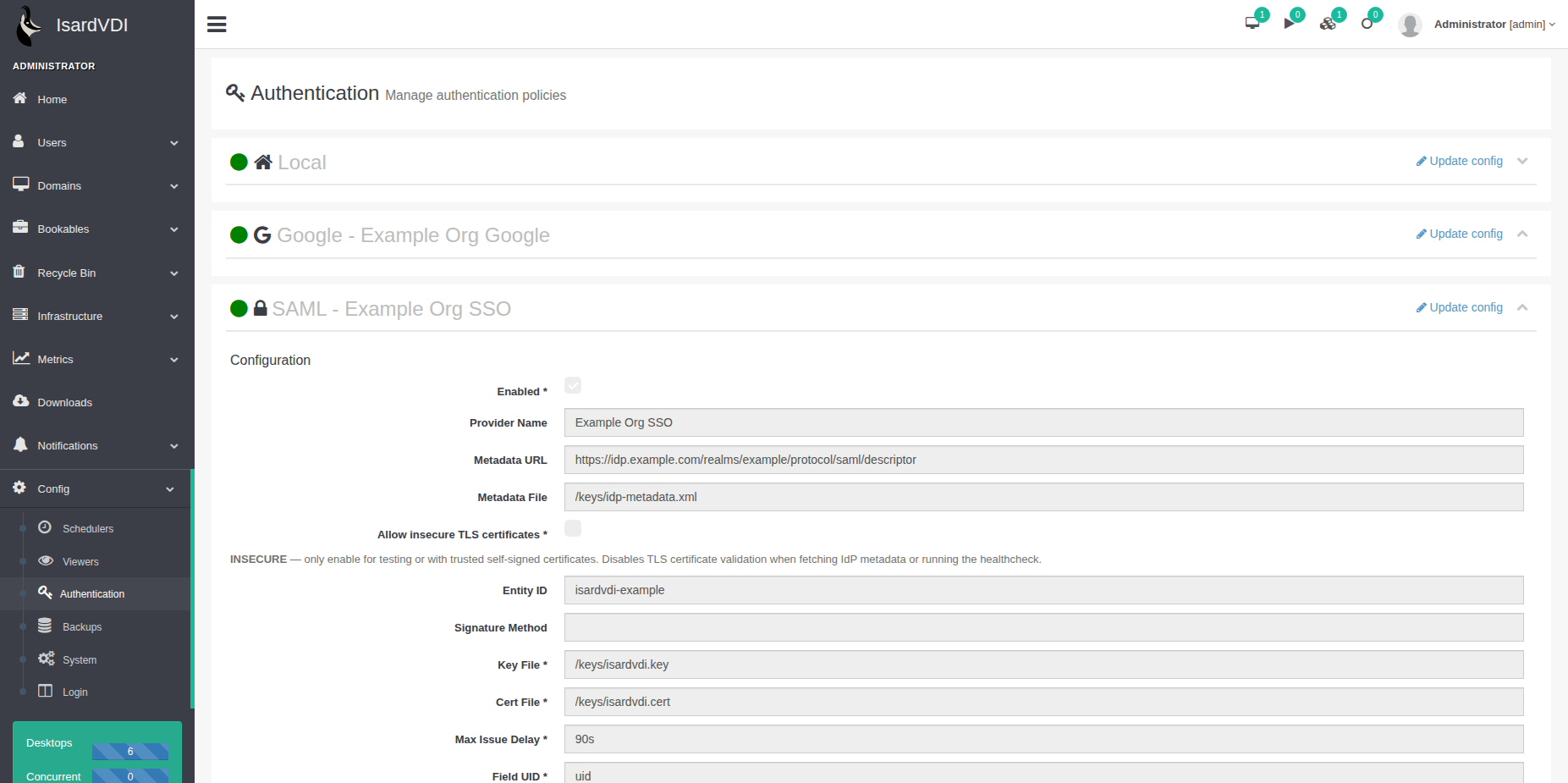
In the SAML panel, the Update config link opens the configuration window. When Enabled is checked, the rest of the form appears.
The form unfolds progressively
As with LDAP, fields appear as others are enabled:
- A Regex … field only appears when its Field … has a value.
- Field Category and Regex Category only appear with Guess Category checked.
- The groups and roles block only appears with Auto Register checked.
Connection to the IdP
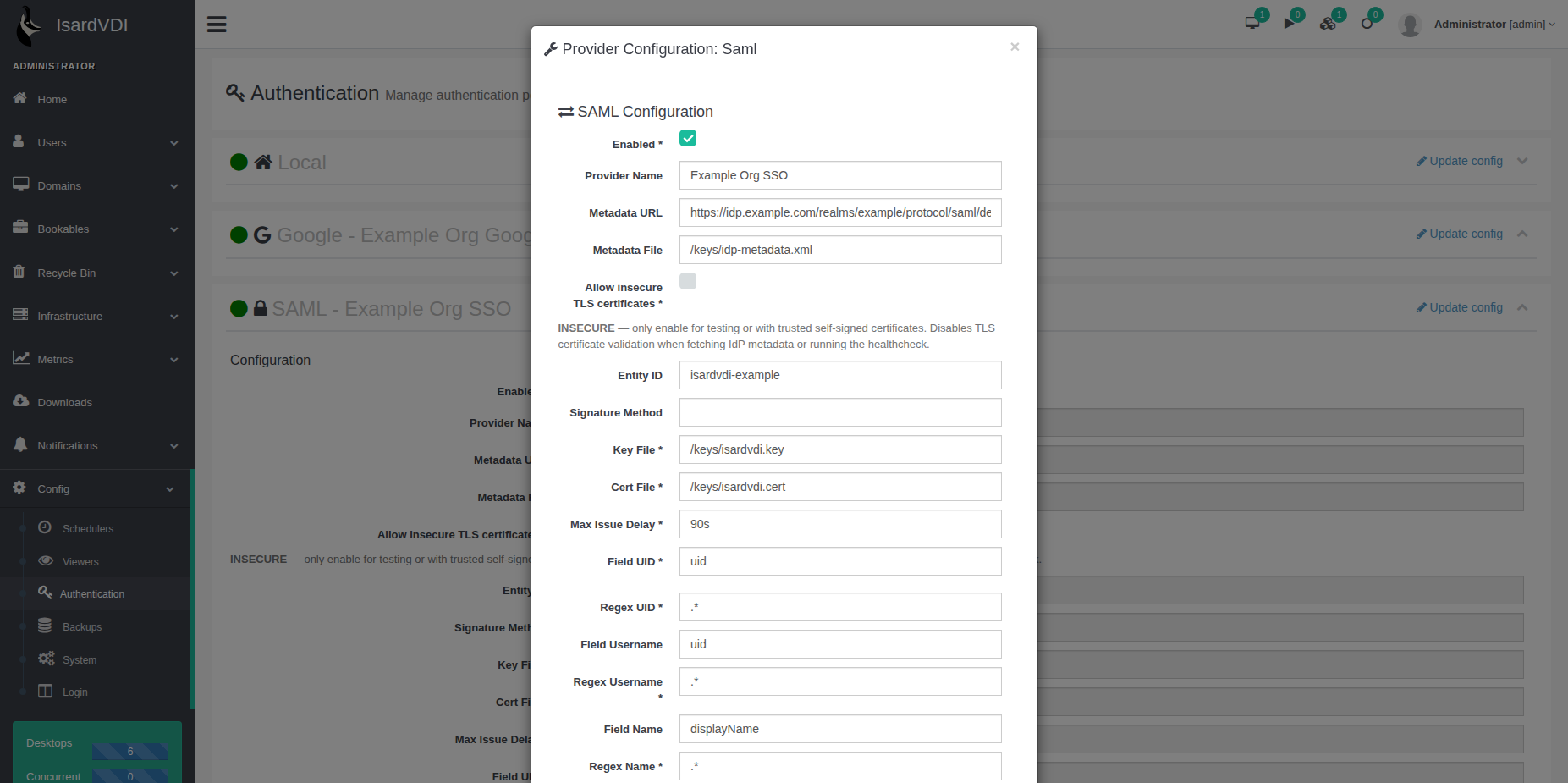
| Option | Default | Description |
|---|---|---|
| Enabled | Unchecked | Enables the provider and adds the Login with SAML button to the login screen. |
| Provider Name | Empty | Descriptive name. It is shown in the title of the administration panel and used as the prefix of automatically created groups. If left empty, saml is used. |
| Metadata URL | Empty | URL to get the IdP metadata from. It must be an https address and cannot point to the same IsardVDI installation. |
| Metadata File | Empty (example: /keys/idp-metadata.xml) |
Local file with the IdP metadata. |
| Allow insecure TLS certificates | Unchecked | Disables validation of the TLS certificate when fetching the IdP metadata. |
| Entity ID | Empty | Entity ID of the service provider. If left empty, the metadata URL is used. Fill it in if the IdP requires a specific one. |
| Signature Method | Empty | Signature method of the AuthnRequest requests. If left empty, requests are not signed. |
| Key File | /keys/isardvdi.key |
Path to the service provider's private key. |
| Cert File | /keys/isardvdi.cert |
Path to the service provider's certificate. |
| Max Issue Delay | 90s |
Maximum time allowed between the login request and the IdP response. |
Metadata URL and Metadata File are alternatives
Fill in at least one of the two; the form does not allow saving if both are empty. If the local file exists, it is used instead of downloading the metadata, which allows starting the service without connectivity to the IdP. If the file does not exist or cannot be read, the URL is used.
To generate the local file:
The values accepted in Signature Method are:
http://www.w3.org/2001/04/xmldsig-more#rsa-sha256   (recommended)
http://www.w3.org/2001/04/xmldsig-more#rsa-sha512
http://www.w3.org/2000/09/xmldsig#rsa-sha1          (discouraged)
Fill it in only if the IdP requires signed requests (AuthnRequestsSigned="true").
Allow insecure TLS certificates
Disables the IdP certificate check. It should only be used for testing or with self-signed certificates of known trust.
Service provider certificate
If the files given in Key File and Cert File do not exist, IsardVDI generates a self-signed one automatically. You can also generate one by hand or use one from the organization's CA:
openssl req -new -x509 -days 3652 -nodes \
  -out /opt/isard/authentication/keys/isardvdi.cert \
  -keyout /opt/isard/authentication/keys/isardvdi.key
Attribute mapping
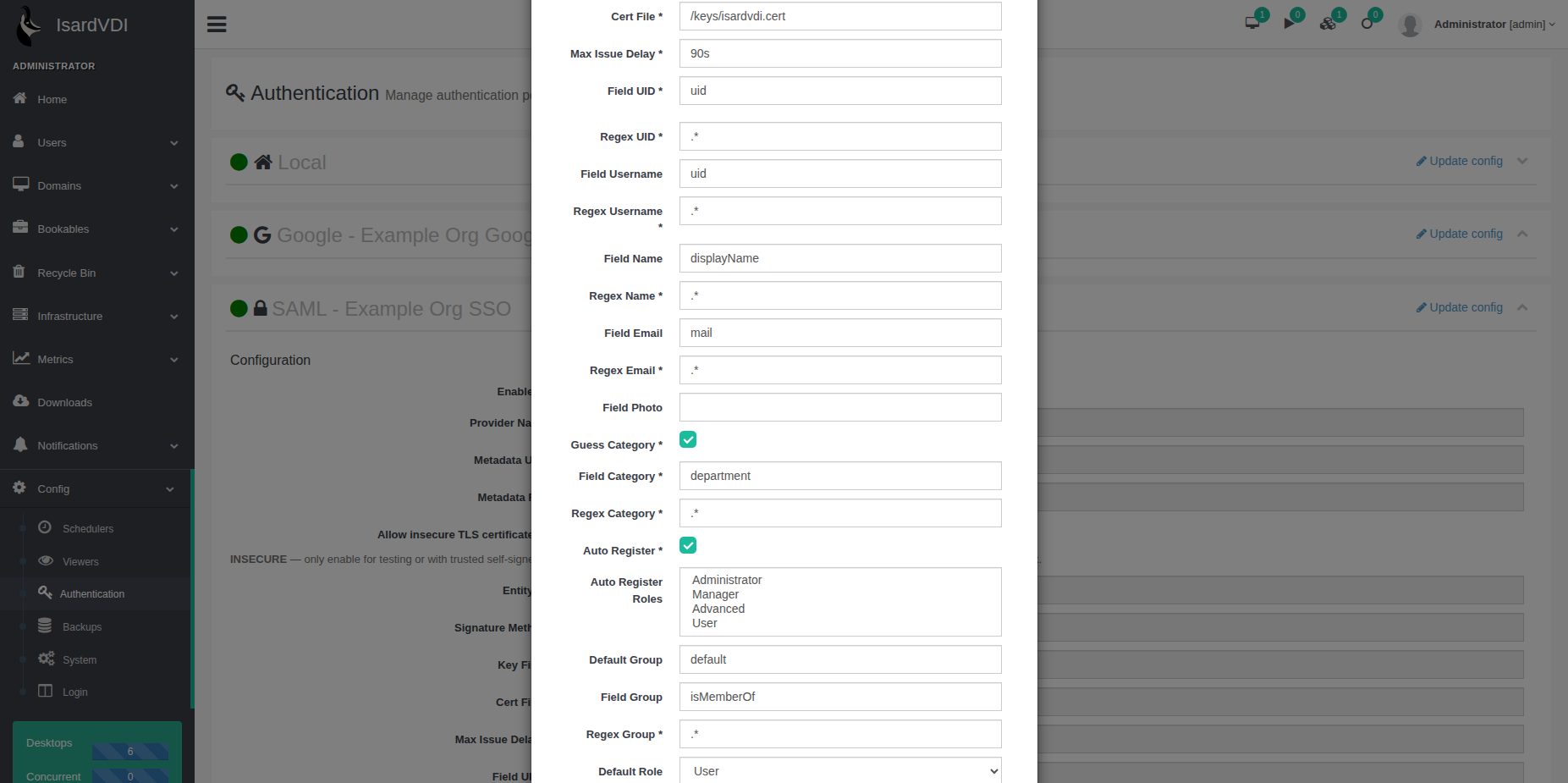
Each piece of user data is read from an attribute of the SAML assertion (Field …) and, optionally, its value is filtered with a regular expression (Regex …).
| Option | Default | Description |
|---|---|---|
| Field UID | — | Attribute holding the user's unique identifier. This field is required. |
| Field Username | — | Attribute holding the login name. |
| Field Name | — | Attribute holding the name to display. |
| Field Email | — | Attribute holding the email address. |
| Field Photo | — | Attribute holding the URL of the photo. |
| Regex … | .* |
Filter applied to the corresponding field. |
| Save Email | Unchecked in new installations (checked in upgraded installations) | Stores the email in the user record. Even if it is not stored, it is used to validate the domain during authentication. |
How regular expressions are applied
The expression is applied to the attribute value and the first capture group is extracted. If the expression has none, the whole match is extracted. By default, .* takes the whole value.
Example: with the eduPersonAffiliation attribute set to urn:example:role:teacher:department:it, the expression .*:role:([^:]+):.* extracts teacher.
Category
| Option | Default | Description |
|---|---|---|
| Guess Category | Unchecked | Deduces the category from a SAML attribute instead of using the one the user chooses in the form. It lets several categories share the same login page. |
| Field Category | — | Attribute holding the category. This field is required with Guess Category checked. |
| Regex Category | .* |
Filter applied to the previous field. |
The extracted value is compared with the category UID
IsardVDI looks for a category whose UID field matches the extracted value exactly. It is not compared with the name or the internal identifier.
The category must be created beforehand in Users → Management with the UID field filled in. If the extracted value does not match any category, the login is denied. If several categories match, the user is asked to choose one.
Self-registration
With Auto Register checked, a SAML user that does not yet exist in IsardVDI is created automatically when logging in:
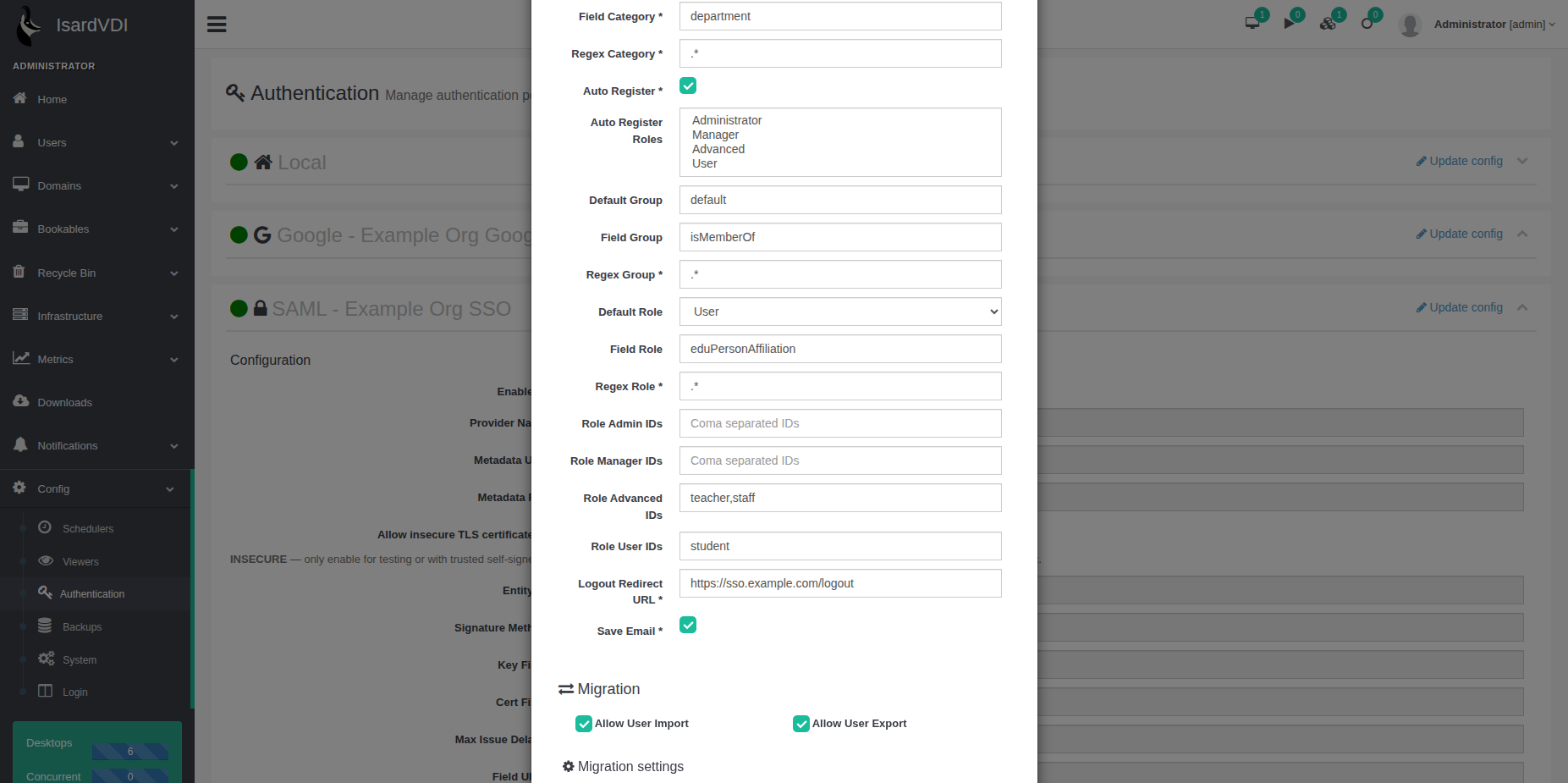
| Option | Default | Description |
|---|---|---|
| Auto Register | Unchecked | Enables automatic user creation. |
| Auto Register Roles | All | Only users whose computed role is in the list are registered automatically. With no selection, all are registered. |
| Default Group | default |
Group assigned when none is extracted from the assertion. |
| Field Group | — | Attribute holding the user's group. |
| Regex Group | .* |
Filter applied to the previous field. |
| Default Role | — | Role assigned when no role mapping matches. |
| Field Role | — | Attribute holding the role information. |
| Regex Role | .* |
Filter to extract the role value from the attribute. |
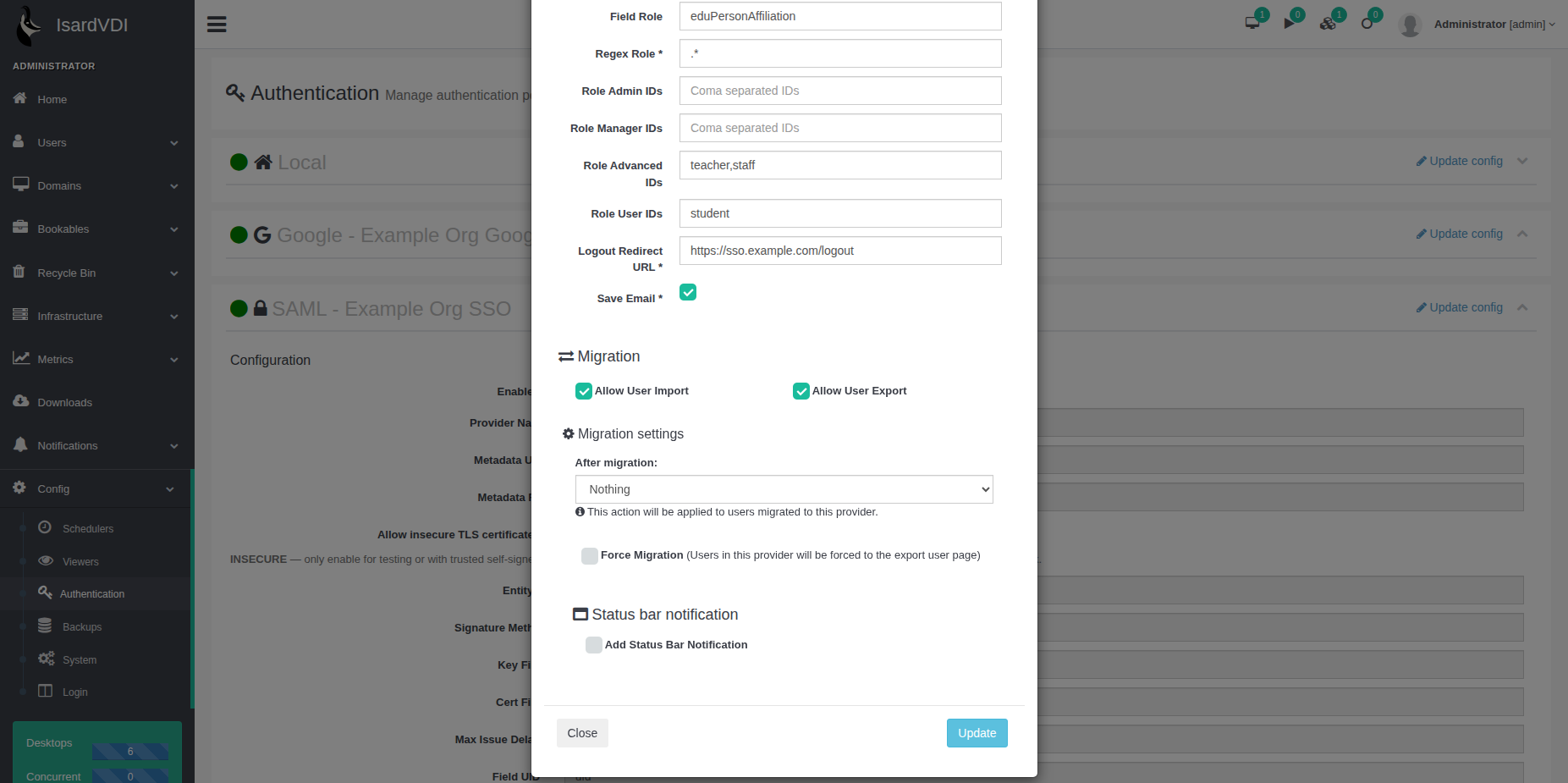
| Role Admin IDs | Empty | Comma-separated values mapped to the admin role. |
| Role Manager IDs | Empty | Values mapped to the manager role. |
| Role Advanced IDs | Empty | Values mapped to the advanced role. |
| Role User IDs | Empty | Values mapped to the user role. |
| Logout Redirect URL | Empty | Where the user is redirected when logging out. If left empty, they are redirected to /. |
The role mapping takes up the last part of the form:
If several mappings match, the role with the most privileges wins
A user who has both a value mapped to manager and another mapped to user is created as manager. The privilege order is admin > manager > advanced > user.
If no mapping matches and Default Role is empty, the login fails. The same happens with the group: if none is extracted and Default Group is empty, the login fails.
How groups are created
Groups do not need to be created by hand: IsardVDI creates them by itself when needed, in the user's category, with the name [<Provider Name>] <extracted value>. If Provider Name is empty, the prefix is [saml].
If several values are extracted from the attribute, the first one that already exists becomes the main group and the rest become Secondary groups. This can also be decided explicitly using named capture groups in Regex Group:
Groups are created automatically; categories are not
Unlike groups, categories are never created on their own. With Guess Category enabled, the category with the matching UID must have been created beforehand.
Migration
The rest of the window is the migration block, common to all providers and described in Introduction to authentication.
SAML is the usual target of a migration: an organization moving from local accounts to corporate SSO enables Allow User Export in the local provider and Allow User Import in the SAML provider.
Configuration example
Example values for a Keycloak-type IdP at a school. They are fictitious: replace them with those of the real IdP.
| Option | Value |
|---|---|
| Provider Name | Example Org SSO |
| Metadata URL | https://idp.example.com/realms/example/protocol/saml/descriptor |
| Entity ID | isardvdi-example |
| Key File | /keys/isardvdi.key |
| Cert File | /keys/isardvdi.cert |
| Max Issue Delay | 90s |
| Field UID | uid |
| Field Username | uid |
| Field Name | displayName |
| Field Email | mail |
| Guess Category | Checked |
| Field Category | department |
| Auto Register | Checked |
| Field Group | isMemberOf |
| Default Group | default |
| Default Role | User |
| Field Role | eduPersonAffiliation |
| Role Advanced IDs | teacher,staff |
| Role User IDs | student |
| Logout Redirect URL | https://sso.example.com/logout |
For Guess Category to work, a category must exist whose UID equals the value the IdP sends in department.
How the panel looks
With the provider enabled, the panel shows all the saved configuration in read-only mode, with the Migration table below. This view is a quick reference of all the available options:
Complete configuration flow
- Check the Enabled option and fill in the Metadata URL or Metadata File field.
- Click Update and wait up to one minute for the service to load the provider.
- Check that IsardVDI publishes the service provider metadata at
https://<domain>/authentication/saml/metadata. - Register IsardVDI in the IdP with the ACS and SLO URLs.
- Configure the IdP to send the attributes given in the mapping.
- If Guess Category is used, create the categories with the UID the IdP will send.
- Test the login and check the logs if it fails.
Behavior for users
With the provider enabled, the login screen shows the Login with SAML button in the Other logins section:
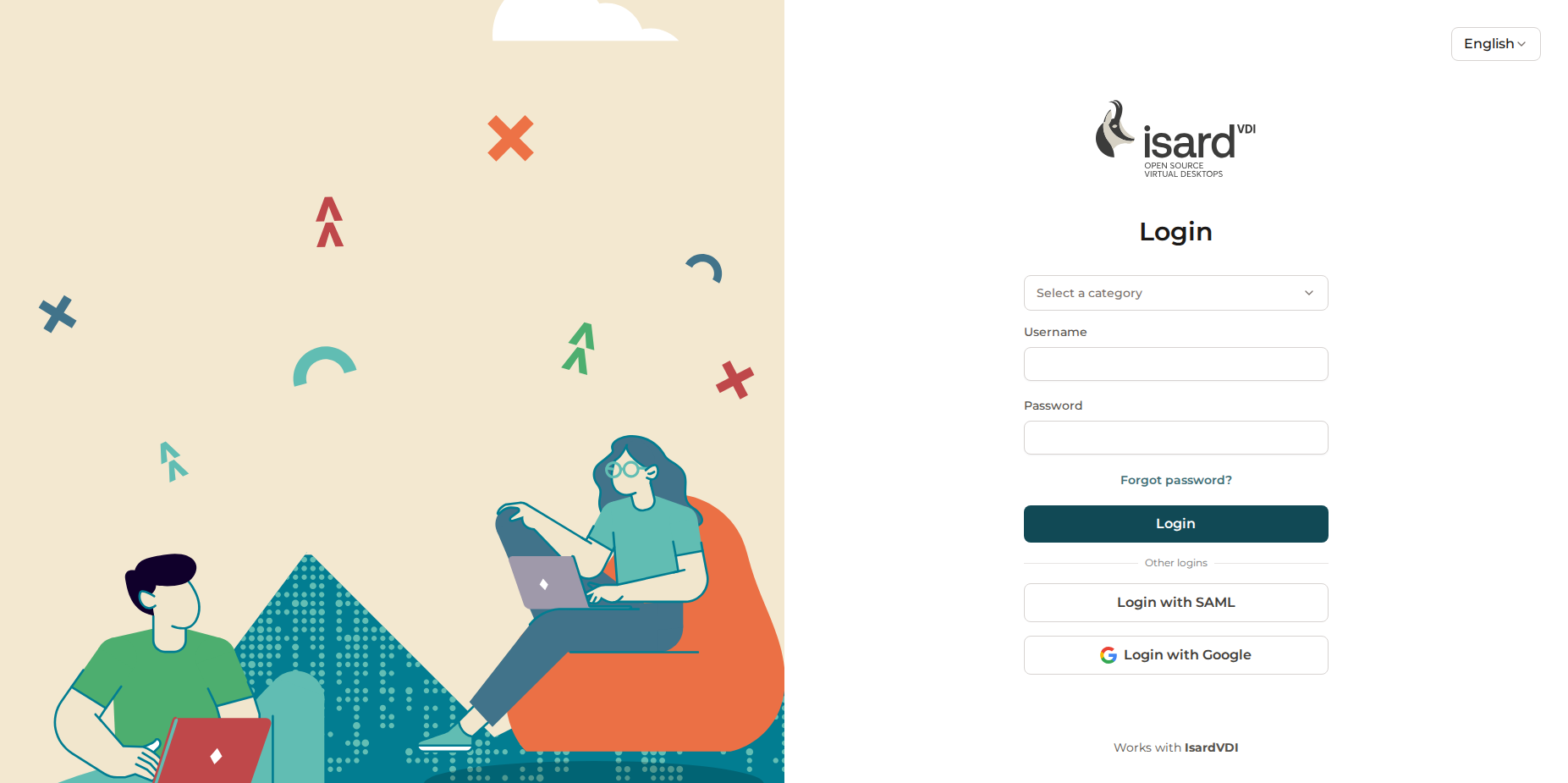
When they click it, the user is redirected to the IdP portal. Once authenticated, they return to IsardVDI. With Auto Register enabled, the account is created automatically at the first access and no registration key is needed.
When logging out, IsardVDI triggers the Single Logout against the IdP. If Logout Redirect URL has been configured, the user is redirected there.
The user's full journey and the messages they may see are in Access methods (SAML tab) and Log in.
Troubleshooting
The provider messages can be seen in the authentication service logs:
| Symptom | Checks |
|---|---|
| The Login with SAML button does not appear | That Enabled is checked and that a minute has passed since saving. In the log, an invalid metadata URL error means the IdP does not resolve or is not reachable, or that the URL is not https or points to the same installation. |
| invalid metadata URL or fetch metadata | That Metadata URL is an https address reachable from the container and does not point to the same IsardVDI installation. As an alternative, save the metadata to the file given in Metadata File. |
| The IdP rejects the request because of the Entity ID | Compare what the IdP expects with what IsardVDI publishes: curl -sk https://<domain>/authentication/saml/metadata \| grep entityID. If needed, fill in Entity ID. |
| Invalid redirect URI | That the IdP has the /authentication/saml/acs, /authentication/saml/slo and /authentication/callback URLs authorized. |
| The IdP requires signed requests | Fill in Signature Method with http://www.w3.org/2001/04/xmldsig-more#rsa-sha256 and check that the certificate and key exist and match. |
| No attributes received | That the IdP is configured to send them and that the Field … names match the attribute names of the assertion exactly. |
| The user is not created | That Auto Register is checked and the computed role is in Auto Register Roles. |
| The user is not created and the log mentions the category | That a category exists with the exact UID extracted by Regex Category. |
To check that the certificate and the key match:
openssl rsa -modulus -noout -in /opt/isard/authentication/keys/isardvdi.key | openssl md5
openssl x509 -modulus -noout -in /opt/isard/authentication/keys/isardvdi.cert | openssl md5
The mapping to the AUTHENTICATION_AUTHENTICATION_SAML_* keys of isardvdi.cfg, and additional configuration examples, are documented in Authentication (installation) and SAML configuration examples.