Scheduler
Roles with access
Only administrators have access to this feature.
To access this section (Scheduler), click the first button in the dropdown menu.
This section has two parts:
- Desktops Timeouts: Maximum time a desktop can remain on.
- Job scheduler: Task scheduler.
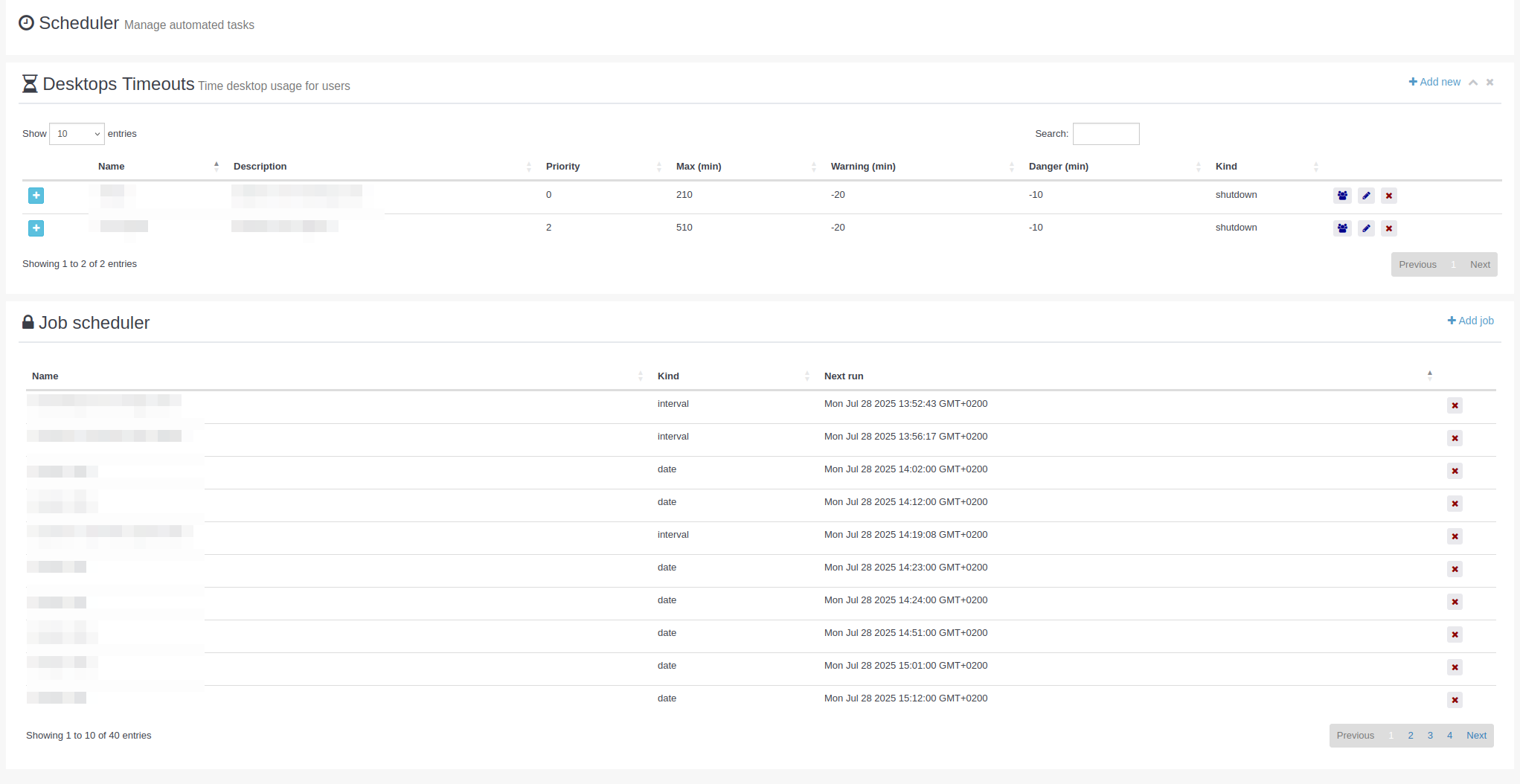
Desktop timeouts
This section sets the maximum time desktops can stay on. Scheduling can be applied by role, category, groups, or individual users.
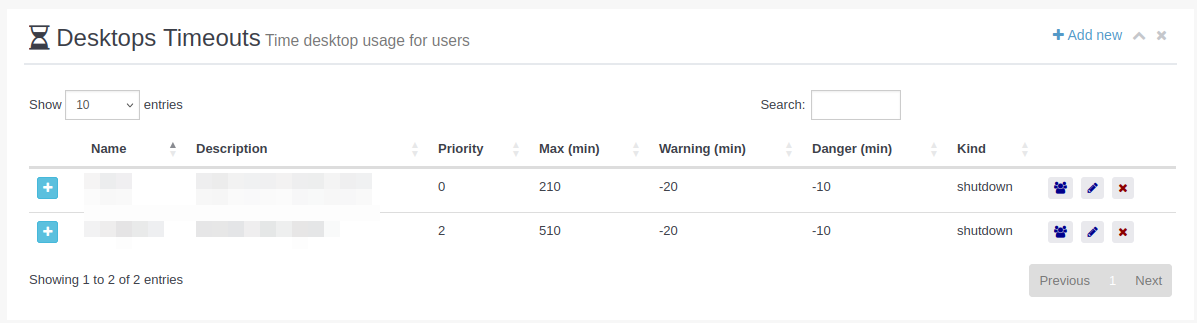
The table shows the configured timeout rules with the following columns:
| Column | Description |
|---|---|
| Name | Name of the timeout rule |
| Description | Description of the rule |
| Priority | Priority of the rule (higher number = higher priority) |
| Max (min) | Maximum time in minutes that a desktop can remain on |
| Warning (min) | Minutes before shutdown when the first warning is sent (negative value) |
| Danger (min) | Minutes before shutdown when the second warning is sent (negative value) |
| Kind | Action that is run (Shutdown) |
| Extend (min) | Extension time and maximum number of allowed extensions (if enabled) |
To create a new schedule, click Add new  and this form opens:
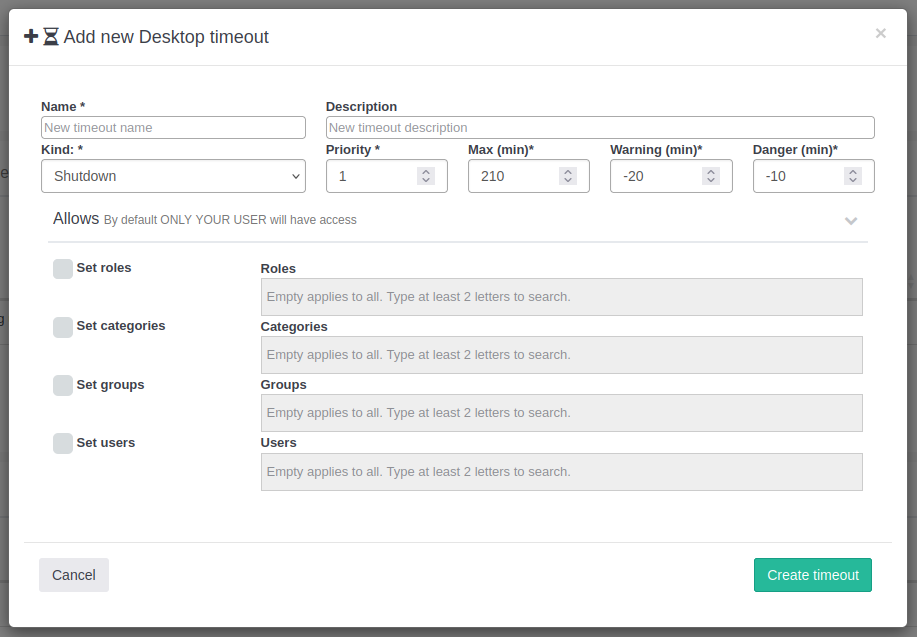
Fields:
- Name: The name of this schedule.
- Description: Brief explanation (optional).
- Kind: Action performed on the desktops. The only one is Shutdown.
- Priority: Priority of the schedule. Higher number, higher priority.
- Max (min): Minutes the desktop can stay on before it shuts down.
- Warning (min): Minutes that must elapse to send a warning indicating that the schedule will be performed. This value must be negative (e.g., -20 means 20 minutes before shutdown).
- Danger (min): Minutes that must elapse to send a second warning indicating that the schedule will be performed. This value must be negative and greater than Warning (e.g., -10 means 10 minutes before shutdown).
- Allows: Filters to assign who this schedule is directed to. They can be combined to be more selective.
Once configured, click Create timeout and the schedule is added to the list.
Rule priority
When a desktop starts, the system looks for the corresponding timeout rule following this priority order:
- Specific desktop: If there is a rule that directly includes the desktop ID.
- Specific user: If there is a rule for the user who owns the desktop.
- User's group: If there is a rule for the group the user belongs to.
- User's category: If there is a rule for the user's category.
- User's role: If there is a rule for the user's role.
If multiple rules match at the same level, the one with the highest Priority value is applied.
User notifications
When a desktop reaches the times configured for Warning and Danger, the user receives pop-up notifications in their interface indicating how many minutes remain until the automatic shutdown (more information in Desktop status). The flow is:
- When starting the desktop, an informational notification is displayed indicating the maximum available time.
- When reaching the Warning time, a warning-type notification is displayed.
- When reaching the Danger time, a danger-type notification is displayed.
- When the Max time is reached, the desktop shuts down automatically.
Extending desktop lifetime
This feature is available from version v14.119.0 of IsardVDI.
The extension feature allows users to extend the usage time of their virtual desktops before they shut down automatically. When this option is enabled, users see an «Extend X min» button on the warning notifications (Warning and Danger) that allows them to add additional time.
Extension configuration:
When creating or editing a timeout rule, there are three additional fields:
| Field | Description |
|---|---|
| Allow extend | Enables or disables the possibility of extending the time. When «Yes» is selected, the extension configuration fields are activated. |
| Extend time (min) | Number of minutes to be added each time the user clicks the extension button. |
| Max extensions | Maximum number of times the user can request an extension for the same desktop session. It must be at least 1 if extension is enabled. |
Important restriction
The Extend time value must be greater than the absolute value of the earliest notification time (Warning). This is necessary so that, after extending the time, the warning notifications (Warning and Danger) are rescheduled correctly and displayed again before the new shutdown.
For example, if Warning is set to -20 minutes and Danger to -10 minutes, the extension time must be greater than 20 minutes.
How it works from the user's point of view:
- The user receives a Warning or Danger type notification indicating that their desktop will shut down soon.
- A green «Extend X min» button appears in the notification (where X is the time configured by the administrator).
- When clicking the button, the indicated time is added to the shutdown timer.
- Warning and Danger notifications are rescheduled relative to the new shutdown time.
- The user can repeat this action as many times as allowed by the Max extensions value.
- Once all extensions are used up, the extension button stops appearing in the notifications.
How it works internally:
When clicking the extension button, the system:
- Verifies that the desktop is running and has a scheduled shutdown.
- Checks that extension is enabled in the corresponding timeout rule.
- Verifies that the maximum number of extensions has not been reached.
- Calculates the new shutdown time by adding the extension time to the current shutdown.
- Deletes all previously scheduled tasks (notifications and shutdown).
- Reschedules the notifications (Warning and Danger) and the shutdown according to the new final time, omitting notifications whose time has already passed.
- Updates the shutdown time and the counter of used extensions.
Practical example:
An administrator configures the following rule:
| Parameter | Value |
|---|---|
| Max (min) | 210 (3 h 30 min) |
| Warning (min) | -20 |
| Danger (min) | -10 |
| Allow extend | Yes |
| Extend time (min) | 30 |
| Max extensions | 2 |
With this configuration:
- The desktop shuts down automatically at 210 minutes (3 h 30 min).
- At 190 minutes, the user receives a Warning type notification with the option to extend by 30 minutes.
- If the user clicks «Extend 30 min», the shutdown is rescheduled to 240 minutes and the notifications are adjusted to the new time.
- The user can extend up to 2 times, reaching a maximum of 270 minutes (4 h 30 min) if they use both extensions.
Task scheduler
Job scheduler is where system tasks that run automatically are scheduled.
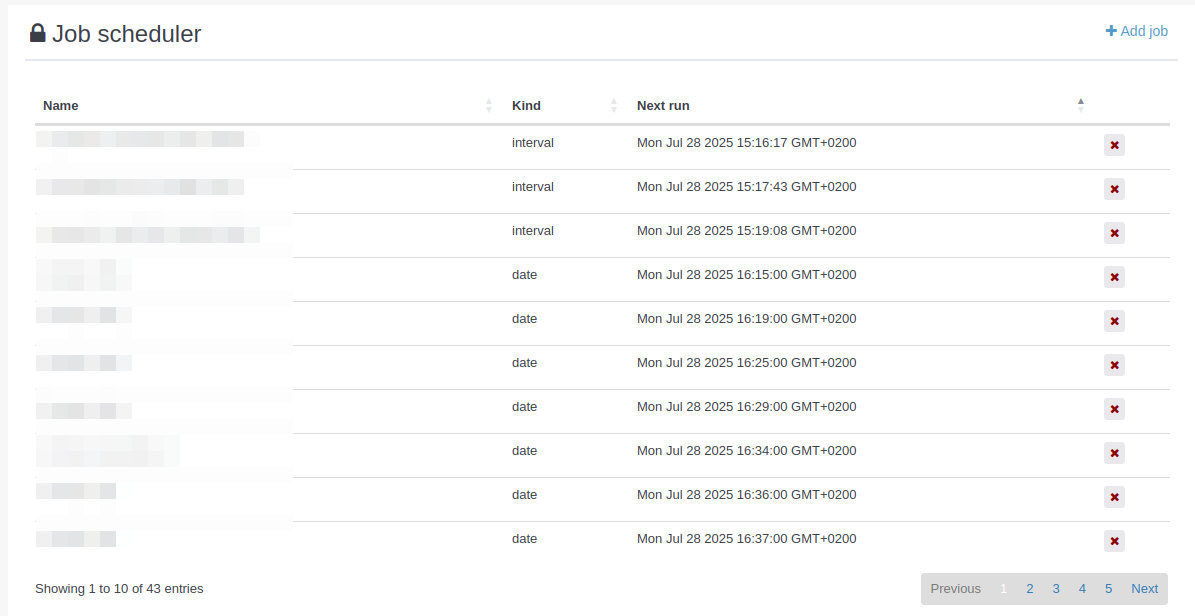
The table shows the scheduled tasks:
- Name: Name of the task.
- Kind: Type of schedule (
cron,intervalordate). - Next run: Next date the task will run.
To create a task, click Add job  . This form opens:
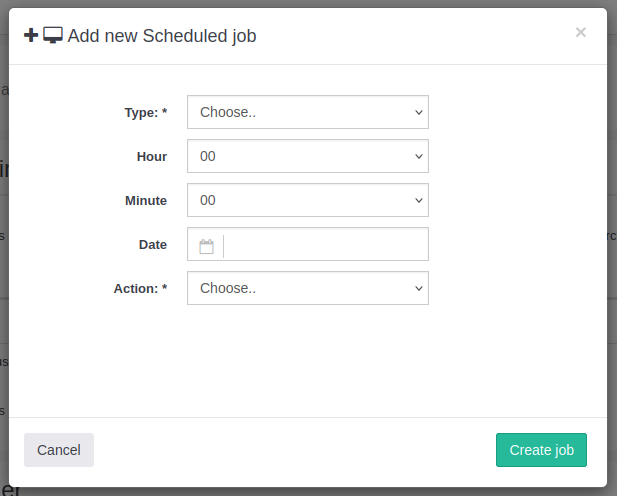
- Type: Type of schedule.
- Daily cron: Runs every day at the hour and minute given.
- Repeat interval: Repeats every time the given hours and minutes have passed.
- Once at a date: Runs only once, on the chosen date and time.
- Hour and Minute: The hour and minute (or the interval, depending on the type).
- Action: Action that is run. Some actions ask for additional parameters, which appear when you choose them.
Click Create job to save the task.
The actions in the dropdown are:
| Action | What it does |
|---|---|
| check ephimeral status | Checks the temporary desktops. |
| consolidate consumptions | Computes the usage data. |
| deployment qmp notification | Sends a system message to the desktops of a deployment. |
| domain qmp notification | Sends a system message to a desktop. |
| domain reservable set | Assigns or removes the booking of a desktop or deployment; if it is removed, its desktops are stopped. It is usually created by the booking system. |
| gpu desktops destroy | Force-stops (does not delete) the desktops started on a given GPU. |
| gpu desktops notify | Sends a message to the desktops started on a given GPU. |
| gpu profile set | Changes the active profile of a GPU. |
| logs desktops old entries action delete | Deletes old desktop logs. |
| logs users old entries action delete | Deletes old user logs. |
| queues old tasks action delete | Deletes old tasks from the queues. |
| refresh running storage sizes | Measures again the disk size of the running desktops. |
| retry failed tasks | Retries the tasks that have failed. |
| stop domains without viewer | Stops the desktops that have no viewer connected. |
| stop shutting down desktops | Forces the stop of desktops that have been in the shutting-down state (Shutting-down) for more than two minutes. |
| storage migration tick | Moves forward the disk migrations in progress. |
| storage pending actions sweep | Runs one pass of the disk sweep, if it is enabled. |
| storage reconcile | Compares the files of the storage pools with the database (parameter apply to correct it), like Reconcile in Storage. |
| wait desktops to do storage action | Waits for the desktops of a disk to stop before running an operation on it (for example, moving it). It is created by the system when disk operations are scheduled. |
The deletion of old recycle bin entries does not appear in the dropdown: it is configured in the Old entries block of Recycle bin configuration.